 Fire Tools
Settings, language, data management
Everything that controls how Fire Tools looks and behaves lives on this page.
Search
Type in Search settings at the top to find a setting by any word it shows, such as "decimal", "token" or "backup". Matching sections open and the others are hidden; case and accents are ignored and every word must match. Press Escape or the clear button to return to the sections you had open.
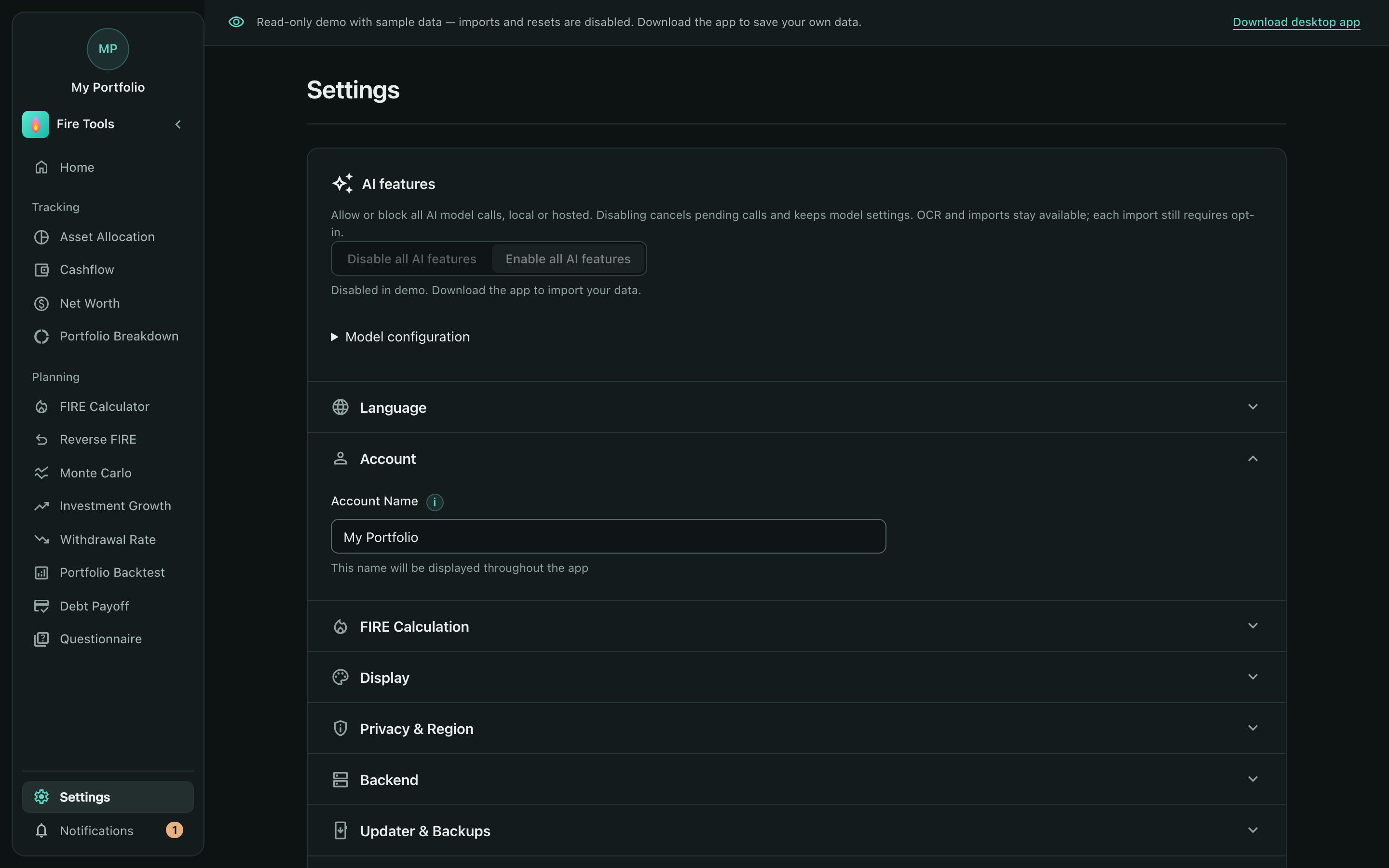
AI features
The AI features section at the top has Disable all AI features and Enable all AI features controls. They apply to every model call, whether the model is local or hosted. Disabling cancels pending categorization and retains endpoint URLs, API keys and model IDs. Local OCR, PDF.js/LiteParse parsing, receipt capture/pairing and ordinary imports remain available.
Enabling AI does not send data automatically: each document import still requires Use AI categorization consent, and the Cashflow quick add asks for confirmation before Improve with AI sends anything. New and legacy settings preserve this per-action opt-in behavior; no model is configured by default.
Expand Model configuration here to choose a Provider, even when experimental document imports or AI are currently disabled:
- Local model (Ollama, LM Studio, llama.cpp, vLLM): runs on your computer
and needs no key. Ollama's address is prefilled; LM Studio uses
http://localhost:1234/v1. If requests are blocked, allow the app in the server's CORS settings (OLLAMA_ORIGINS, or Enable CORS in LM Studio). - OpenRouter, OpenAI, Google Gemini and Anthropic Claude: hosted services that need an API key. Fire Tools calls their OpenAI-compatible endpoints directly from this device.
- Other OpenAI-compatible endpoint: any server that implements the chat/completions API and allows requests from the app.
Selecting a provider fills in its base URL, which you can still edit, and shows an example model ID. Settings saved before providers existed keep working. Hosted providers receive only the descriptions, amounts and currencies you choose to send, never your history, files or other data. See AI categorization for the endpoint details.
The master preference applies immediately and is saved with your other
settings in the database, so the backend settings API and settings.json
sidecar show the same value. Model configuration, including API keys, stays on
this device.
Currency
Pick the currency the app displays everywhere. The setting is global and applies to the calculator, trackers and allocation manager. Currency does not convert your existing entries — values are stored in the currency in which you entered them.
Language
Choose between English (default), Italian, French, German or Spanish. The UI updates immediately without a reload. Missing translations fall back to English so a partial release never breaks the app.
Language is independent of currency. Switching to Italian doesn't change your numbers from euros to lire, and switching to USD doesn't change the UI to American English.
Theme
Light, dark and system-auto are supported. The choice is remembered across sessions.
Experimental features
Beta features (e.g. the Portfolio breakdown view) live behind a toggle so they're opt-in until they stabilise.
In the public web demo every experimental feature is enabled by default so visitors can explore the full app without flipping toggles. The desktop app and self-hosted builds keep them opt-in (all off until you enable them here).
Data management
- Export all data — bundles every tool's state into a single ZIP with one CSV per tool. Use this for backups.
- Import data — restores a previously exported bundle. Use it on a new device or after Clear all data.
- Import spreadsheet: backfills net worth history, cash flow, allocation
targets and FIRE settings from an
.xlsxworkbook, with a preview first. Import expenses (XLSX) adds one year of detailed expenses from a workbook with a sheet per month, and Import operations (XLSX) records investment buys, sells and dividends. Each has a template download with an AI assistant prompt. See Spreadsheet import. - Clear all data — wipes your local store (SQLite DB on desktop, encrypted cookies in browser). The app reloads empty. There is no undo; export first if you might want the data back.
Database sync
With the desktop app's embedded backend, or a custom backend under Settings > Backend, the database is the source of truth for settings, the FIRE calculator, asset allocation, cashflow and net worth. Changes made through the API (for example by a script or an AI agent) appear in the open app within a few seconds. The app opens once your data has loaded, or after 8 seconds on the copy kept on this device if the database does not answer.
- Database sync in Settings > Data shows whether changes are being saved, are all saved, or are waiting offline, with a Retry now button. Changes made offline stay on this device and are sent when the database is reachable again.
- If this device and the database hold different data, a banner asks which copy to keep: Use the database copy or Replace the database with this device's data. Nothing is overwritten until you choose. The first time the desktop app syncs data that already exists on this device, it backs up the database before copying the device's data into it.
- If the database refuses a change (for example an invalid amount), the app shows the saved data again and lists the refused change with the reason.
- Backend connection settings, the access token, update, logging and AI model settings stay on this device and are never sent to the database.
For a custom backend started with API_TOKEN, enter the same value in
Access token next to the backend URL. Test connection reports a
rejected token.
API access
Desktop only, off by default. Settings > API access lets other apps, scripts and AI agents on this computer read and update your data through the local API. While it is on, the section shows a stable Address (port 47820 by default, changeable), an Access token you can copy or regenerate, and a Connection file holding both for scripts. The token stays valid across restarts until you regenerate it or turn access off. See Use the Fire Tools API.
Audit log
The Audit log panel records meaningful actions you take — creating, editing or deleting assets, running the FIRE calculation, changing a setting, and importing or exporting data — so you can answer "what did I just change?".
- Filter by action type and date range, and expand any row for its details.
- Clear audit log empties only the log (your data is untouched).
- It is bounded to the most recent entries and stored with the same AES-256 encryption as the rest of your data.
The log is private by design: it stays on your device, records only non-sensitive context (never amounts, tickers or account values), and is never exported off device.
Privacy
- Desktop app — data lives in a local SQLite database under the OS
userDatadirectory. Migrations run automatically on startup. Nothing is transmitted to a server unless you opt in. - Self-hosted — data lives in the volume-backed SQLite (or Postgres) database on your own server. Nothing is transmitted elsewhere unless you opt in.
The hosted web demo is read-only and stores nothing — it only loads sample data for evaluation.
The only outbound calls are explicit opt-ins (e.g. the on-demand price refresh on the Asset allocation page).