 Fire Tools
Expense tracker
A lightweight ledger for monthly cash flow. Use it to figure out your real annual expenses (the number that drives the FIRE target) instead of guessing.
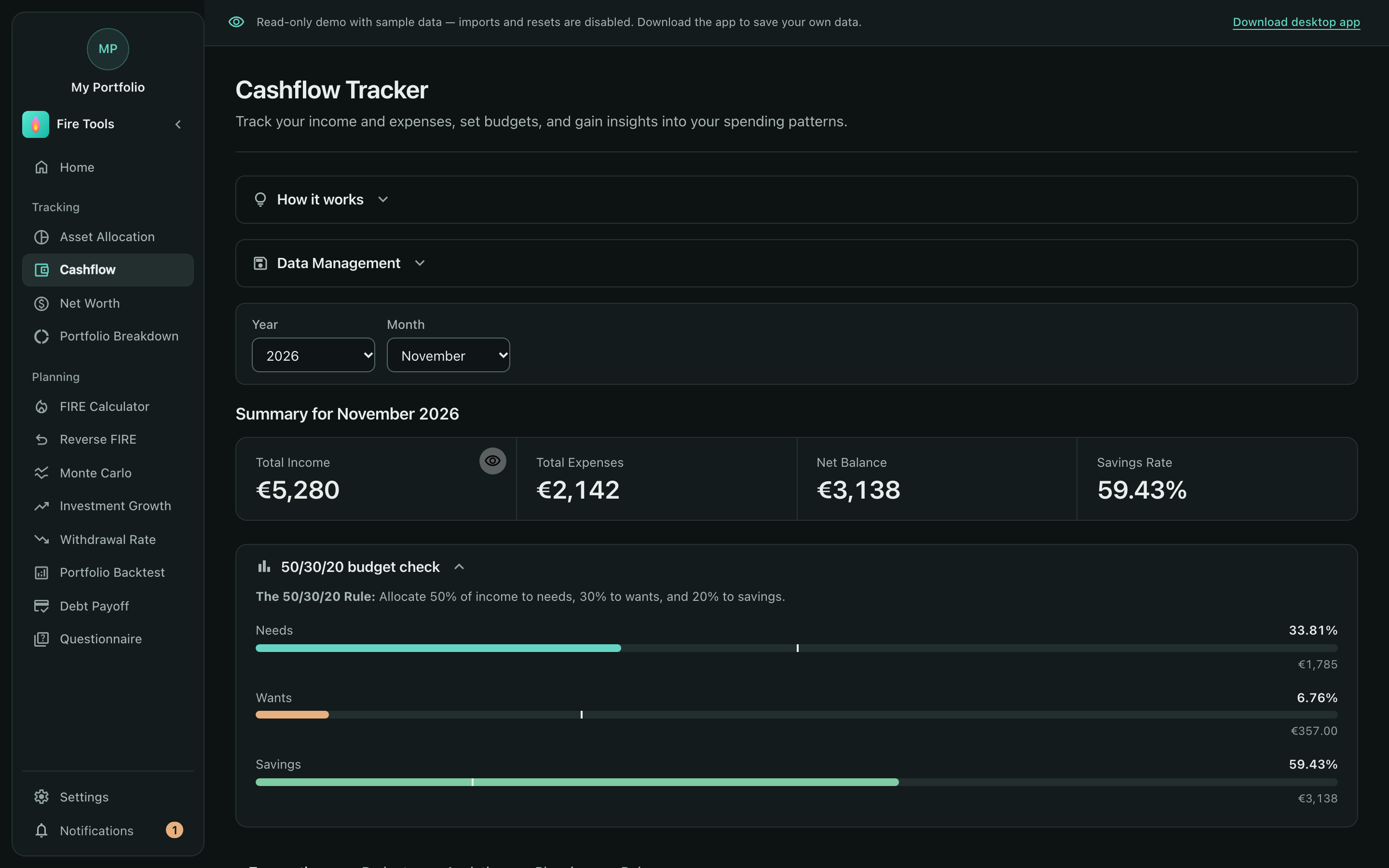
How to use it
- Add categories (e.g. Rent, Groceries, Transport, Travel) under Settings → Categories, or accept the defaults.
- Add a transaction: pick a date, category, currency and amount; the currency conversion is optional.
- The ledger groups transactions by month and shows totals per category.
Recurring and repeated expenses
Turn on Recurring Transaction for bills you pay every month (rent, utilities, insurance). When you open a new month, recurring entries from the previous month are copied into it.
For a fixed price paid a varying number of times, such as lessons or classes,
turn on Same amount several times and enter the amount each time and how
many times. The total is calculated for you and the list shows it as, for
example, €45.00 × 2. Combined with Recurring Transaction, next month's
copy keeps the price, so you only change the number of times. CSV exports
include the UnitAmount and Quantity columns.
Built-in categories
The built-in categories are No Category, Housing, Utilities & Bills, Groceries, Dining Out, Transportation, Healthcare & Wellness, Personal Care, Insurance, Debt Payments, Education, Business & Fees, Shopping, Clothing & Accessories, Electronics & Tech, Entertainment, Lifestyle & Leisure, Music, Hobbies & Collectibles, Travel & Holidays, Subscriptions, Gifts & Donations and Other. Each category only suggests Need or Want; you can change it on every expense. Rename, recolor or add categories in the category manager.
The former Fees category is now part of Business & Fees and Holidays is part of Travel & Holidays. Saved data, backups, CSV and spreadsheet imports, planning schedules and import rules are converted automatically. When a month had budgets for both the old and the new category, the amounts are added together (when they use the same currency). A custom name or color on the retired category is dropped; the surviving category keeps its own.
Quick add: paste a month of expenses
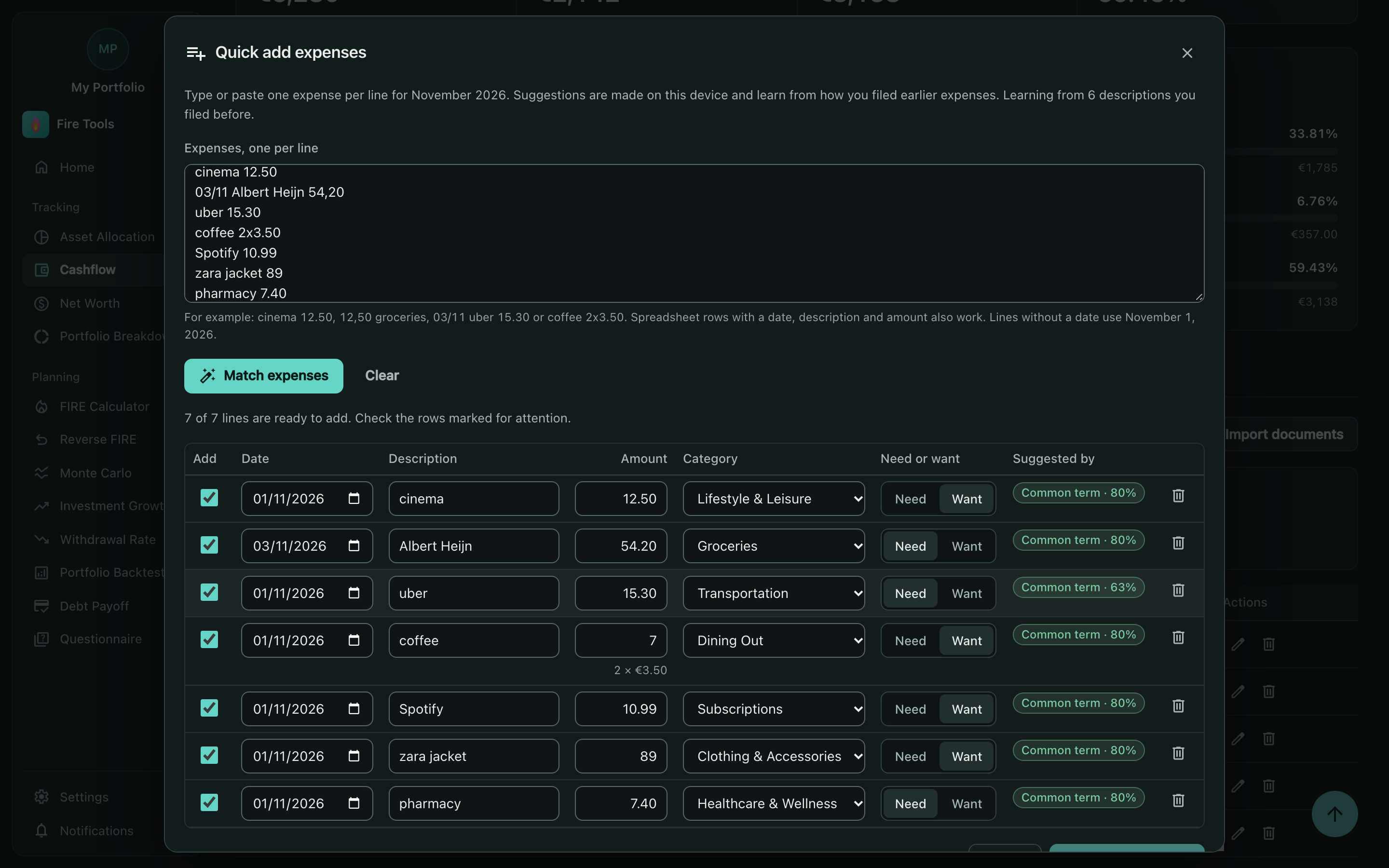
Select Paste expenses next to Add Expense to log many expenses at once for the selected month. Type or paste one expense per line, for example:
cinema 12.50
12,50 groceries
€ 54.20 supermarket
03/11 uber 15.30
2026-11-03 train 23.10
coffee 2x3.50
Amounts can come before or after the description, with dot or comma decimals,
thousands separators and a currency symbol or code. A line can start with a
day (3 uber 15.30), a day and month (03/11) or a full date. Lines without
a date use the first day of the selected month, the same default as Add
Expense. 2x3.50 records the same price paid several times. Rows copied
from a spreadsheet (tab, semicolon or comma separated) work too, and a header
row is skipped. A line that cannot be read, such as one without an amount or
with a date outside the month, stays in the review table with an explanation
so you can fix it instead of losing it.
Select Match expenses to review the rows. Each row gets a category and a Need/Want suggestion:
- Your enabled import rules always win.
- Otherwise Fire Tools compares the description with every expense you filed before (BM25 text matching) and with a small built-in list of common words and well-known shops in English, Italian, German, French and Spanish. Your own history counts more than the built-in list, so if you always file a shop under a particular category, that category is suggested.
- Rows with low confidence are highlighted. The Suggested by column shows whether a suggestion came from a rule, your history, a common term or AI.
You can change the date, description, amount, category and Need/Want of every row, untick rows you do not want, or remove them. Add N expenses saves the ticked rows into the selected month. Matching runs entirely on this device; it learns from your saved expenses and nothing is uploaded.
Improve with AI appears only when AI features are enabled and a model is configured in Settings. After you confirm, only the descriptions, amounts and currencies of the rows that are not already set by a rule or by you are sent to the configured model; dates and your expense history stay on this device. If the model fails, your local suggestions are kept. The web demo is read-only, so it can match expenses but not save them.
Guided month log
Log
Planning ahead
Planning adds scheduled income/bills, explicit record/link confirmation, 30/90/365-day cash forecasts and manually funded savings goals. Rules adds offline categorization suggestions to the document-import review. These do not post money automatically or count reserved goal balances as assets. See the cashflow planning guide for accounting assumptions, privacy, category lifecycle and backup/restore details.
Reading analytics
Open Analytics and choose a month, quarter or year. Category pies and trends use the same muted colors and respect your category color overrides. Legends sit outside the plot so long category lists do not crop the chart. On a small screen, scroll the detailed breakdown table horizontally instead of the whole page.
The Expense statistics panel covers the complete saved history, including archived years:
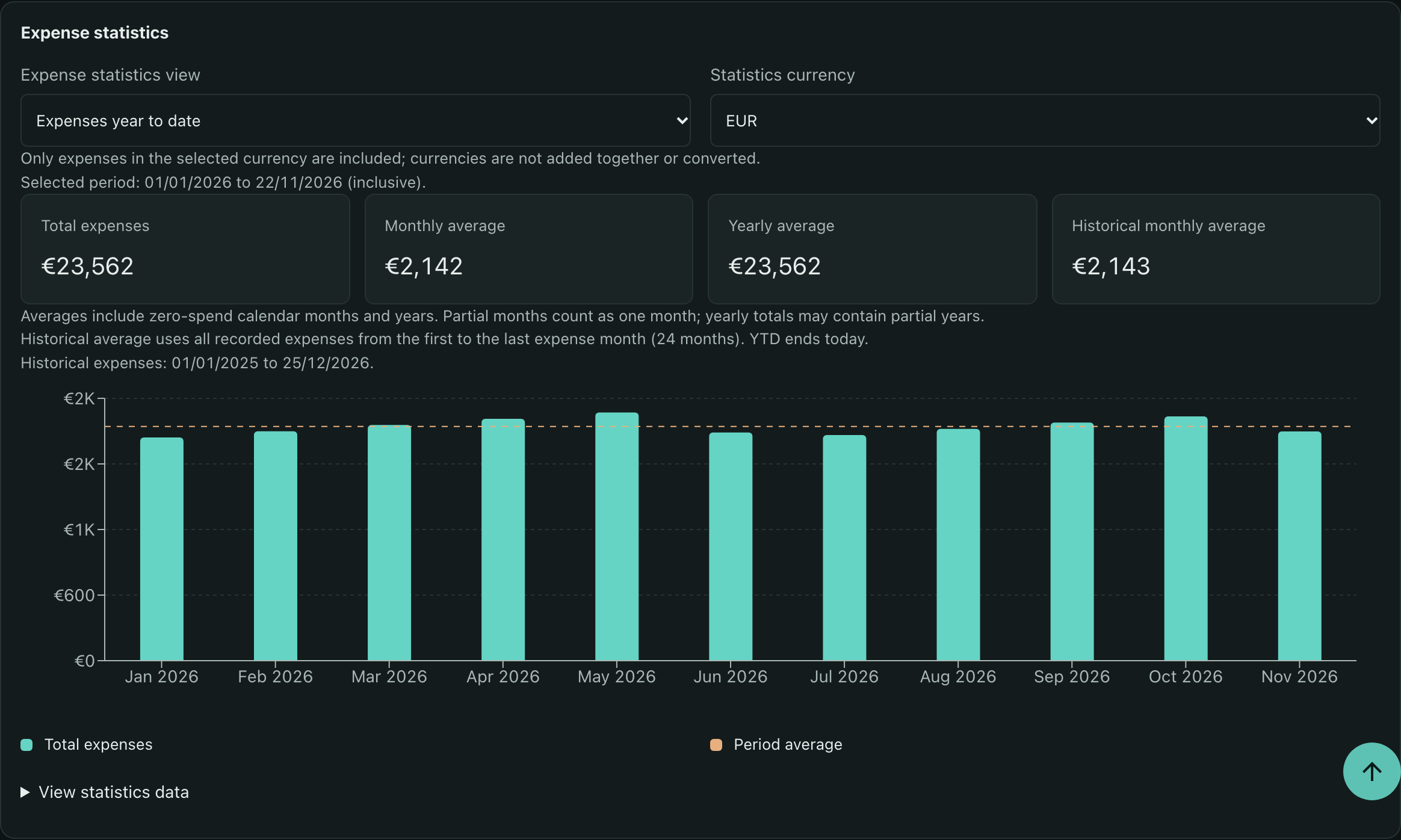
- Expenses year to date totals actual expense dates from January 1 through today. Its monthly average divides by the elapsed calendar months, including empty months, not just months with entries.
- Yearly expenses plots totals per year and their yearly average, including zero-spend years between the first and last expense.
- Custom date range uses inclusive start/end dates, even across years. Totals and monthly/yearly averages update with the chosen range.
The historical monthly average covers the first through last recorded expense month. Partial months/years count as one calendar period and missing periods count as zero; these are not annualised forecasts. Statistics are filtered by currency instead of adding or silently converting different currencies. Invalid legacy amounts/dates are excluded with a visible warning. Use View statistics data for the accessible table; wide history charts scroll locally rather than shrinking their labels. Privacy mode hides the displayed values, including chart axes, tooltips and table data.
Importing from your bank
Use Import documents to upload a bank statement or receipt photos, or take
a receipt photo. Fire Tools includes lightweight
extractors for a handful of common European bank PDF layouts (see
docs/pdf-import.md for the supported list and how to
contribute one). Imported rows land in a staging table where you can map them
to categories before committing.
Select LiteParse + OCR as an alternative to PDF.js for scanned PDFs and photos. It runs on the configured local backend, including the desktop's embedded backend, and retains photo originals in the Receipt inbox before parsing. Phone pairing opens a separate, short-lived upload-only Wi-Fi listener; an existing HTTPS tunnel is optional. AI categorization works with local models (no key needed) and hosted providers; see AI features.
Importing a yearly expenses spreadsheet
Already track spending in a spreadsheet with one sheet per month? Use Data Management > Import expenses (XLSX) to bring in a whole year, or Download expenses template to start one. See Yearly expenses workbook.
Linking to the FIRE calculator
The bottom of the page shows the annualised expenses derived from the last 12 months of entries. Use that number as the Annual expenses input in the FIRE calculator to make your projection match reality.